Stark monitored controls automatically tie product changes to compliance frameworks
Proving accessibility compliance has meant collecting screenshots, spreadsheets and exported reports by hand. Stark now completes Compliance Center controls on its own: when your team publishes an accessibility statement, sends accessibility issues to a ticketing system, or monitors a live site, the matching control is marked complete with evidence Stark has verified, and it reopens if that work stops.
Team Stark
Nov 18, 2026
For as long as teams have tracked accessibility compliance, the proof has come from outside the work itself: a screenshot of an integration’s settings page, a spreadsheet someone updates before each audit, a PDF report exported once and attached to a control. That evidence starts going stale the day it’s collected, and keeping it current takes hours that compliance and product teams rarely have. As a program grows, proving the work is still happening, audit after audit, can take as much effort as the work itself.
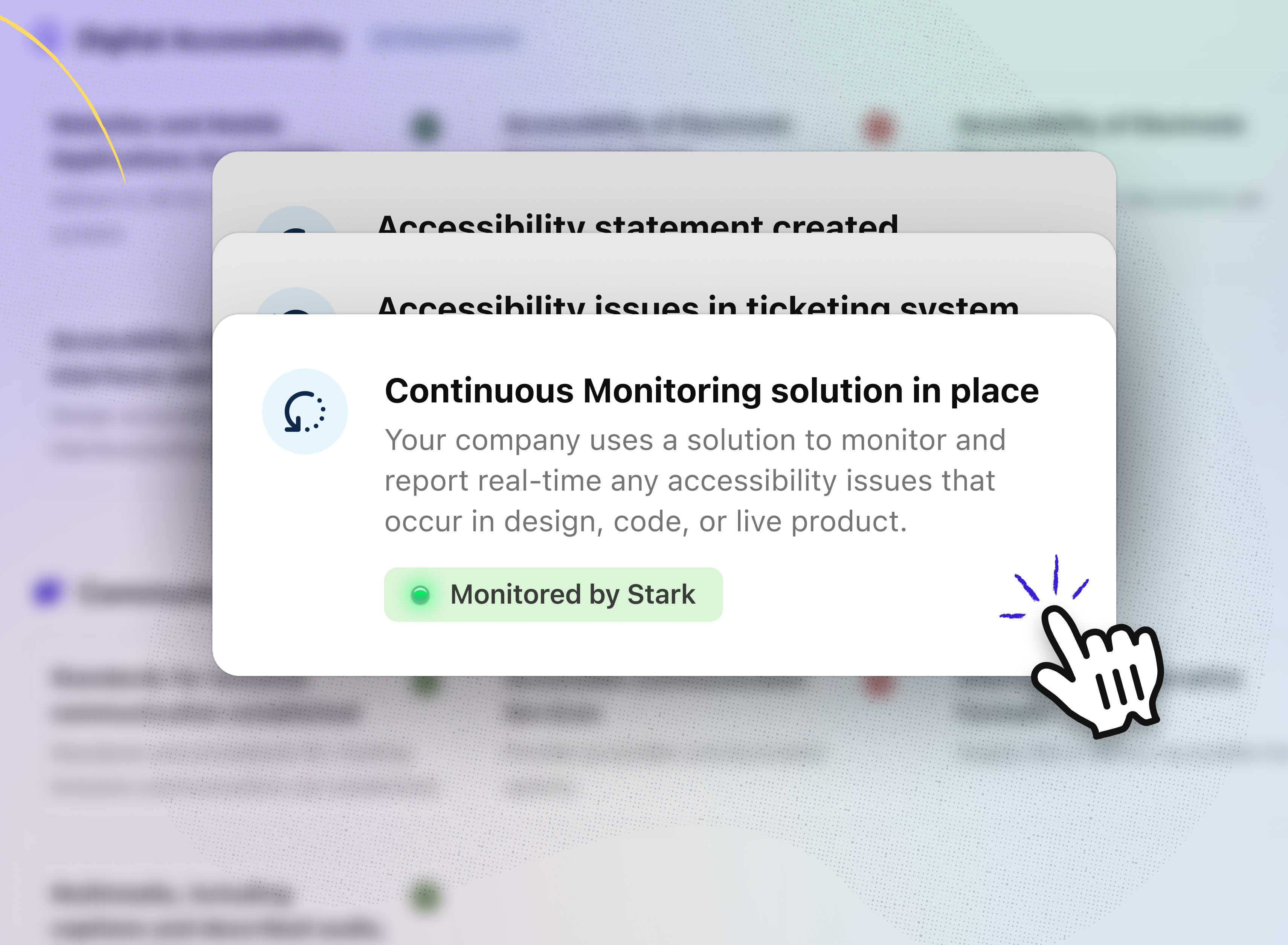
Some Compliance Center controls describe work your team already does in Stark, like monitoring a live site or sending accessibility issues to a ticketing system. Stark now watches for that work and completes those controls itself, so the work being monitored becomes the proof. It attaches evidence marked “Monitored by Stark”, and reopens a control if the work stops. Compliance leads spend less time collecting proof for controls Stark can already see, and the status of those controls stays tied to what’s happening in the product.
-
Completed by the work itself → controls close when your team does the work in Stark, with no separate evidence step
-
Every framework at once → one action counts toward each framework the control maps to
Three controls Stark completes for you (and more soon!)
Each monitor is tied to one control in the Compliance Center catalog. That control appears across the frameworks you track, including SUAF, the W3C Maturity Model, the EAA, and any future frameworks.
-
Accessibility Statement created → completed when your team saves an accessibility statement in your public Compliance Center
-
Accessibility issues in ticketing system → completed once a ticketing integration is connected and at least one accessibility issue has been sent to a ticket from a project
-
Continuous monitoring solution in place → completed when a project has at least one URL asset being monitored
For example, a compliance lead preparing for an EAA review opens the monitoring and reporting section and finds the continuous-monitoring control already complete. The web team added the marketing site as a URL asset months ago, the evidence card says so, and there’s nothing to upload as the proof shows in both the compliance center and evidence library.
URL assets are the first asset type that counts toward continuous monitoring, and code repositories are just around the corner (note: we'll be watching for PR-gated checks and the presence of those new-fangled ACCESSIBILITY.md files).
Controls stay in step with your product
Stark re-checks these controls when something relevant changes:
-
a statement is saved
-
a ticketing integration is connected or disconnected
-
tickets are created
-
assets are added, moved, or removed
If the condition is no longer met, Stark removes its evidence and marks the control incomplete, unless your team has attached other evidence to it. When the condition is met again, Stark completes the control and keeps the original completion date.
For example, if a team deletes the only URL asset in its projects during a cleanup, the continuous-monitoring control reopens and shows what’s needed to complete it again. The gap shows up in the Compliance Center before it shows up in an audit.
-
Re-checks when the work changes → controls update on their own, with nothing to refresh
-
Evidence removed when it no longer holds → a completed control means the work is still in place
-
Original completion date kept → the control’s history stays intact when it’s restored
How to use it
-
Open the Compliance Center in the Stark web app and choose a framework.
-
Look for controls whose evidence carries the Monitored by Stark tag.
-
For an open monitored control, follow its banner: add a URL asset to a project, create an accessibility statement, or connect a ticketing system.
-
Once the condition is met, Stark completes the control and lets you know.
You can see what Stark verified
Evidence on these controls carries a “Monitored by Stark” tag and a short description of what Stark checked, such as: “Verified by Stark: assets in your projects are monitored for accessibility issues”.
When a monitored control is still open, a banner explains what will complete it and links to the next step: go to your projects, create an accessibility statement, or connect a ticketing system.
When Stark completes a control, your team gets a notice with a link to view it in the Compliance Center. In the Evidence Vault, this evidence is labeled “Stark Monitored”. It can’t be edited or deleted, because Stark manages it.
-
Monitored by Stark tag → reviewers can tell which evidence Stark verified
-
Guidance banners → open controls show exactly what’s needed to complete them
-
Completion notices → your team knows when Stark has completed a control
As accessibility programs mature, the harder question shifts from whether the work is happening to whether you can prove it’s still happening, audit after audit and across every framework you report against. Stark-monitored controls tie that proof to the work itself, starting with these three controls, and as code repositories and more asset types join, more of your compliance posture keeps itself current without anyone collecting screenshots.
💬 How does your team collect evidence for accessibility controls today? Let us know which controls you’d want Stark to monitor next.
If you'd like to understand how it all works, book a call or kick off a free two-week trial (no credit card required!) straight away.
Feel free to share your thoughts and feedback at support@getstark.co, or join the conversations in our Stark Slack Community, on LinkedIn, and on Twitter.